
If you want to know how to type superscript or how to type subscript, it depends on where you’re typing. In Word or Google Docs, you can turn on real superscript or subscript formatting with a keyboard shortcut, and it applies to whatever you type next. Everywhere else — a bio, a text message, a chat app, a plain form field — there’s no formatting option at all, so the only way to get raised or lowered characters is to paste in actual Unicode symbols like ² or ₂ that already look small and shifted. This guide covers both approaches, plus where each one runs into trouble.
Real Formatting vs. Unicode Characters
It helps to understand the difference before picking a method, because the two aren’t interchangeable. Real superscript and subscript, the kind you toggle on in Word or Docs, is a text attribute stored alongside the character. The letter or number itself doesn’t change; the software just draws it smaller and shifted up or down. That’s why it survives spell-check, resizes correctly with the font, and reads properly to a screen reader.
Unicode superscript and subscript characters, like ²³ⁿ or ₁₂ₓ, work the opposite way: they’re entirely separate characters with their own code points, not a style applied to normal letters. There’s no formatting involved, which is exactly why they survive being pasted into places that strip all styling — usernames, tweets, bios, and text messages. The tradeoff is that Unicode only defines a limited set of them, which the section further down covers.
How to Type Superscript
The method depends entirely on the app, since there’s no single shortcut that works across all of them.
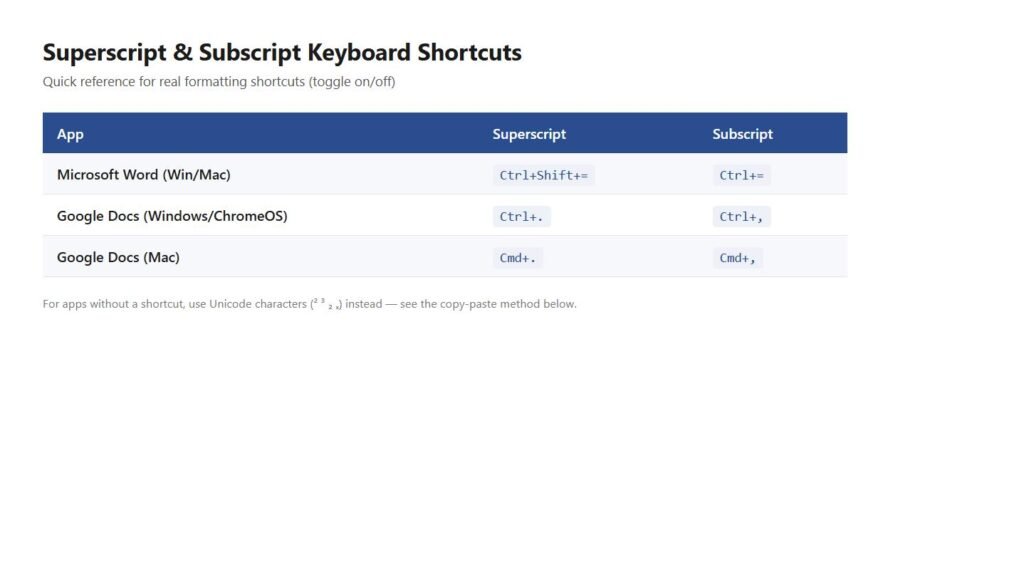
Microsoft Word
Select the text and press Ctrl+Shift+= to toggle superscript on or off. The same shortcut works in Word for Mac. You can also click the small x² icon in the Home tab’s Font group.
Google Docs
Press Ctrl+. on Windows or a Chromebook, or Cmd+. on a Mac. It’s a toggle, so pressing it again returns to normal text. The same option is under Format > Text > Superscript.
Windows (Outside Office)
Most Windows apps have no built-in superscript toggle. For the three superscript digits that already exist in the legacy Windows character set — ¹, ², ³ — you can hold Alt and type 0185, 0178, or 0179 on the numeric keypad. This only works with an actual numeric keypad, not the number row, and it only covers those three characters, since Windows’ old Alt-code table never included the rest. For anything else, open Character Map (search “charmap” in the Start menu), switch to Unicode search, and copy the superscript character you need directly.
Mac (Outside Office)
Apps like Pages, Keynote, and TextEdit have real superscript formatting under Format > Font > Baseline > Superscript. There’s no single system-wide keyboard shortcut for it, since it depends on each app’s own menus. For Unicode superscript characters instead, press Cmd+Ctrl+Space to open the Character Viewer, then search “superscript” to find and insert one.
Mobile (iPhone, iPad, Android)
Native iOS and Android keyboards don’t include a superscript toggle, and most apps don’t expose one either. The Google Docs mobile app is an exception — select your text, open the formatting menu, and superscript is listed among the text options. For everything else, including Notes, Messages, Instagram, and TikTok, copying and pasting a Unicode superscript character is the only practical option. Open the Superscript/Subscript Generator, type your text, tap Copy, then switch back and paste — and on Android, pin the result in your keyboard’s clipboard tool (the clipboard icon above Gboard, or Clipboard in Samsung Keyboard’s toolbar) so it’s one tap away next time instead of reopening the generator.
How to Type Subscript
Subscript works the same way structurally, but a couple of details differ from superscript.
Microsoft Word
Press Ctrl+= (no Shift) to toggle subscript on or off, or use the x₂ icon next to the superscript button in the Home tab.
Google Docs
Press Ctrl+, on Windows or a Chromebook, or Cmd+, on a Mac, or use Format > Text > Subscript.
Windows (Outside Office)
Unlike superscript, Windows has no legacy Alt-code shortcuts for subscript digits, since they were never part of the original character set. Inside Word specifically, you can type a character’s Unicode hex value and immediately press Alt+X to convert it — typing 2082 then pressing Alt+X produces ₂, for example. Outside Word, Character Map or copying a character from a generator are the reliable options.
Mac (Outside Office)
The same Format > Font > Baseline > Subscript menu in Pages, Keynote, and TextEdit applies here. For Unicode subscript characters, the Character Viewer (Cmd+Ctrl+Space) works the same way it does for superscript.
Mobile
Subscript is even less common in mobile app menus than superscript. On Android specifically, keyboards like Gboard and Samsung Keyboard have no subscript key, and there’s no system-wide shortcut the way Alt codes work on a Windows desktop. The one native exception is the Google Docs Android app: select your text, tap the formatting (“Aa”) icon, open Advanced, and choose Subscript. In every other Android app — Chrome, WhatsApp, Instagram, Samsung Notes, or a plain text message — type your text into the Superscript/Subscript Generator, tap Copy, then switch back and paste. That works everywhere because it inserts a real Unicode subscript character instead of relying on a formatting toggle the keyboard doesn’t have. If you’ll need the same subscript character again, pin it in your keyboard’s clipboard tool — see the superscript section above — so you don’t have to reopen the generator each time.
The Fastest Method: Copy and Paste Unicode Characters
Once you know how to type superscript or how to type subscript using the app-specific methods above, there’s still a faster route for one-off use. If you don’t need real formatting, or you’re typing somewhere that doesn’t support it at all, generating the Unicode character directly and pasting it is quicker than hunting through menus on any device. TypeGleam’s Superscript/Subscript Generator converts text into these characters instantly in your browser: type your text, copy whichever result you need, and paste it into a bio, caption, chemical formula, or footnote. It also leaves any character with no Unicode equivalent unchanged instead of guessing, which matters for the reason covered next.
Characters Unicode Doesn’t Have a Superscript or Subscript Version For
All ten digits exist in both superscript and subscript form, so numbers are never a problem. Letters are a different story. Superscript covers nearly the entire lowercase alphabet, but the letter q was never encoded and simply doesn’t exist as a superscript character. Subscript is far more limited: only a small set of lowercase letters, mostly ones used in phonetic notation, have subscript code points at all, and there are no subscript uppercase letters whatsoever. If you need a raised or lowered version of a letter Unicode doesn’t support, real formatting in Word or Docs is the only option that will actually work.
Common Problems and Fixes
- Pasted characters show up as boxes or question marks: the font on that device doesn’t include the glyph. This happens more often with less-used subscript letters than with digits.
- Superscript formatting disappears after pasting: real Word or Docs formatting doesn’t survive being pasted into a plain-text field, chat app, or plain email. Only Unicode characters keep their shape everywhere.
- The Alt code doesn’t produce anything: laptops without a physical numeric keypad often need Num Lock enabled on an embedded keypad, or don’t support Alt codes at all. Character Map is more reliable in that case.
- Word keeps auto-formatting 1st, 2nd, 3rd: Word’s autocorrect superscripts ordinal suffixes automatically. Undo with Ctrl+Z right after it happens, or turn it off under AutoCorrect Options > AutoFormat As You Type.
- Everything I type afterward stays superscript: it’s a toggle, so remember to press the shortcut again, or click the button again, once you’re done.
Practical Examples
- Exponents: x² + y² = z², 10³
- Chemical formulas: H₂O, CO₂, C₆H₁₂O₆
- Ordinal numbers: 1st, 2nd, 3rd — Word formats these automatically; Google Docs does not
- Footnote markers: a claim followed by a raised reference number, explained at the bottom of the page
- Variables in notation: terms like xₙ or aᵢ in subscript form
FAQ
Is there one keyboard shortcut that works in every app?
No. Word and Google Docs each have their own toggle, and most other software has no shortcut at all, which is why copy-pasting Unicode characters is the fallback that works everywhere.
Can I use superscript or subscript in an Instagram or TikTok bio?
Yes, but only the Unicode character version, since these platforms don’t support real text formatting. Generate the characters and paste them in.
Why does my subscript text look different on someone else’s phone?
Unicode characters are drawn by whatever font the device has installed, so minor differences in shape, weight, or spacing are normal across platforms.
Should I use real formatting or Unicode characters in a Word document?
Real formatting, when it’s available. It supports every character, resizes correctly, and reads properly with screen readers. Save Unicode characters for places real formatting can’t reach.
How do I type superscript or subscript on Android or a phone keyboard?
Neither Gboard nor Samsung Keyboard has a built-in superscript or subscript key. The reliable method — and the only one that works in apps without a Google Docs-style formatting menu — is to open the Superscript/Subscript Generator, type your text, tap Copy, then paste it wherever you need it. If you’ll reuse the same character often, pin it in your keyboard’s clipboard tool (the icon above Gboard, or Clipboard in Samsung Keyboard’s toolbar) so it’s one tap away next time instead of switching back to the generator.
Related Guides and Tools
Now that you know how to type superscript and how to type subscript by hand, the Superscript/Subscript Generator handles the conversion for you. If you’re dealing with other Unicode oddities, the guide to the zero-width space walks through a very different kind of hidden character problem. You can also browse the full Guides hub for more.